We at Crack4sure are committed to giving students who are preparing for the DELL EMC D-PE-OE-23 Exam the most current and reliable questions . To help people study, we've made some of our Dell PowerEdge Operate 2023 exam materials available for free to everyone. You can take the Free D-PE-OE-23 Practice Test as many times as you want. The answers to the practice questions are given, and each answer is explained.
An administrator has been tasked to create and save replacement of a server configuration with the file
name of "PE-server".
The profile must include the configuration for only the following components:
. NIC
. RAID
. iDRAC
Using the simulator, create and save the replacement with these components.
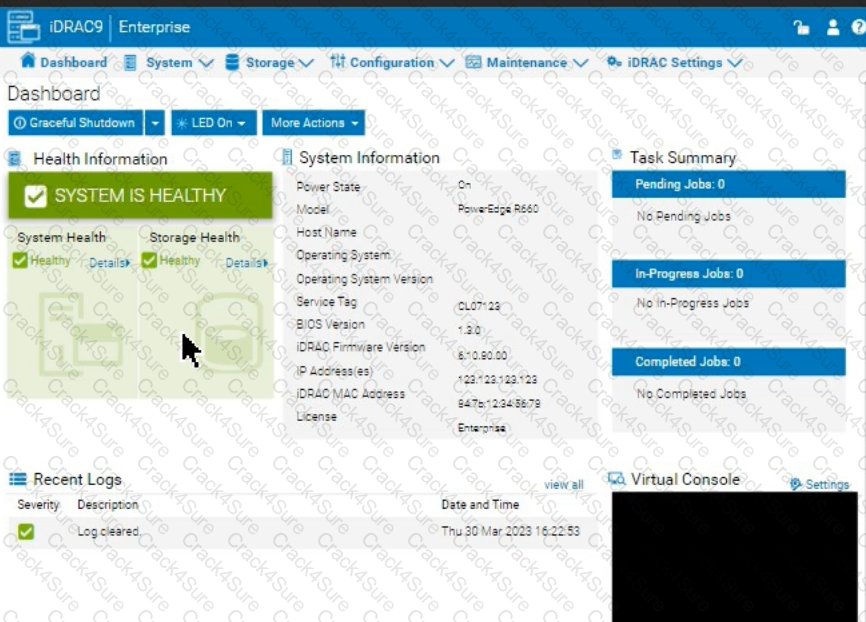
See the Explanation for Step by Step solution.
To create and save a server configuration profile with specific components in the iDRAC interface, follow these steps:
Step-by-Step Guide:
Access Configuration Profiles:
Go to the "Configuration" tab on the top menu bar.
From the dropdown options, select "Server Configuration Profile."
Create a New Profile:
Within the Server Configuration Profile section, choose the option to Create a New Profile.
You will likely see options to specify which components to include in the configuration profile.
Select Components:
When prompted, select only the components required for the configuration:
NIC: Network Interface Card settings.
RAID: Storage controller and RAID configuration.
iDRAC: iDRAC management settings.
Ensure that other components are not selected to meet the requirement.
Save the Configuration:
Enter the file name "PE-server" for the profile.
Choose the option to Save or Export the configuration profile. This should save the configuration to the specified name, typically on the server or local storage available through iDRAC.
Verify the Profile Creation:
After saving, verify that the profile appears in the list of server configuration profiles with the name "PE-server."
Confirm that it includes only the selected components.
By following these steps, you should successfully create and save the configuration profile with the specified components.
Click the Launch Simulator button.
Using the iDRAC UI, what is listed as the Cache Memory Size for the H965i storage controller?
Note: It is necessary to close (x) the simulator window before you can select a response to this question.
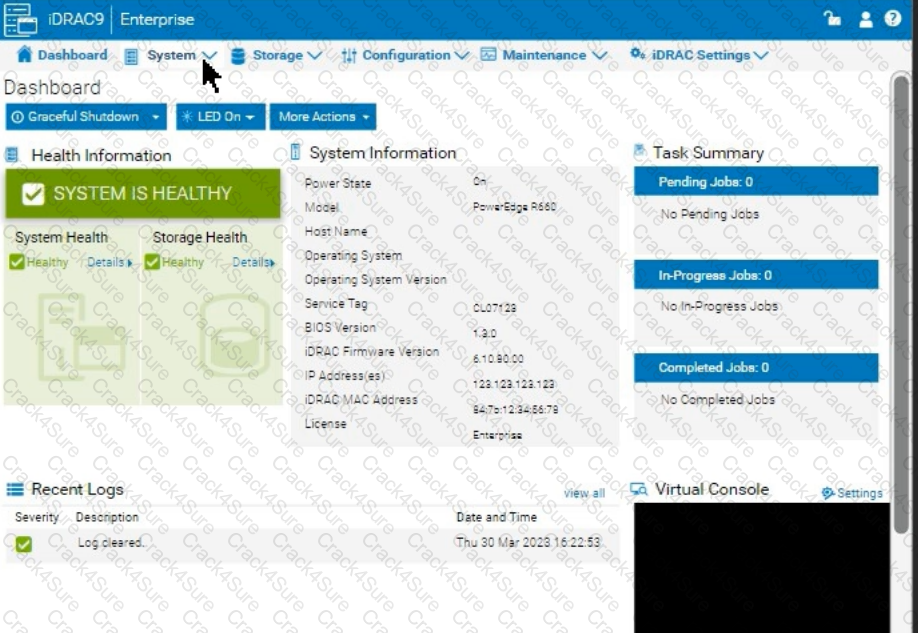
965 MB
8361 MB
1064 MB
8 GB
? Launch the Simulator:
Open the PowerEdge iDRAC simulator to access the user interface and perform the required task.
? Navigate to System Information:
In the top menu bar, select the "Configuration" tab.
From the options that appear, choose "Storage". This section will display details and configurations for the storage controllers installed on the server.
? Check the H965i Storage Controller:
Locate the H965i storage controller in the list. Selecting it should bring up a summary page with various specifications for the controller.
Look for the field labeled "Cache Memory Size". This will provide the cache memory size value for the controller.
Exhibit.

What does the black strap on the power supply handle specify?
PSU
NAF
RAF
Spare PSU
Understanding the Black Strap on the Power Supply Handle
Server Components (26%)
Identify power options and redundancy features, thermal features, and liquid cooling
Explanation of Power Supply Straps
Dell PowerEdge servers often use black straps on power supply units (PSUs) to indicate certain attributes of the PSU. The color of the strap can help identify specific features or categories of the power supply.
What Does "NAF" Mean?
NAF stands for Non-Redundant, Auto Failover.
This indicates that the PSU is part of a non-redundant configuration, but it is capable of automatic failover in the case of power loss.
This is typical in systems with multiple PSUs, where each PSU can take over if the other fails.
Why Not Other Options?
Option A: PSU
The strap does not indicate that the device is just a PSU; rather, it indicates a specific feature of the PSU.
Option C: RAF
RAF stands for Redundant Auto Failover, which is not the correct feature indicated by the black strap.
Option D: Spare PSU
The strap does not indicate that the PSU is a spare unit.
Conclusion
The black strap on the power supply handle indicates that the PSU is NAF (Non-Redundant, Auto Failover). This means it is part of a non-redundant system but capable of automatic failover.
A system administrator observes network connectivity issues with their iDRACs.
Which three commands can be used in the Diagnostic Console to troubleshoot this issue?
(Select 3)
show-netstat
ping
ifconfig
ipconfig
arp
Troubleshooting iDRAC Network Connectivity Issues Using Diagnostic Console
Server Troubleshooting (32%)
Explain Easy Restore, diagnostic utilities, and hardware diagnostic options
Analyze the visual indicators on server components - system ID, PSU, and BLINK
Understanding the Diagnostic Console
Diagnostic Console: An interface within iDRAC that provides command-line tools for troubleshooting and diagnosing issues.
Purpose: Allows administrators to execute commands directly on the iDRAC to diagnose network and system problems.
Commands Available for Network Troubleshooting
ping
Usage: Tests connectivity to other network devices by sending ICMP echo requests.
Purpose: Determines if the iDRAC can reach a specified IP address or hostname.
Example: ping 192.168.1.1
ifconfig
Usage: Displays or configures network interface parameters.
Purpose: Checks the status of network interfaces, IP addresses, and subnet masks configured on the iDRAC.
Example: ifconfig eth0
arp
Usage: Displays or modifies the system's ARP table.
Purpose: Helps identify IP to MAC address mappings, useful for diagnosing duplicate IP issues or incorrect network configurations.
Example: arp -a
Explanation of Options
Option A: show-netstat
Explanation: While netstat is a common networking command, show-netstat is not a standard command in the iDRAC Diagnostic Console.
Conclusion: Not a valid command in this context.
Option B: ping
Correct Answer: Used to test network connectivity.
Option C: ifconfig
Correct Answer: Used to display and configure network interface settings.
Option D: ipconfig
Explanation: ipconfig is a Windows command-line utility, not available in the iDRAC (which is Linux-based).
Conclusion: Incorrect.
Option E: arp
Correct Answer: Used to view and manage the ARP cache.
Dell Operate References
Server Troubleshooting (32%)
Emphasizes the use of diagnostic utilities for troubleshooting network issues.
Explain Easy Restore, diagnostic utilities, and hardware diagnostic options
Highlights the importance of understanding and utilizing available tools for diagnostics.
Conclusion
The three commands that can be used in the iDRAC Diagnostic Console to troubleshoot network connectivity issues are:
ping: To test connectivity to other network devices.
ifconfig: To check and configure network interface settings.
arp: To view and manage the Address Resolution Protocol cache.
These commands help identify connectivity problems, misconfigurations, and issues with network interfaces.
A system administrator plans to use iDRAC Direct to use features such as RACADM and WSMan. What is used to make the connection?
USBC
Micro USB
Mini USB
USBA
Understanding iDRAC Direct and Connection Methods
Server Management and Configuration Tools (14%)
Define the function of the iDRAC, login procedures, licensing, and connection methods
iDRAC Direct Overview
iDRAC Direct provides a direct connection to the Integrated Dell Remote Access Controller (iDRAC) using a USB interface.
Purpose: Allows administrators to perform management tasks locally without needing network access.
Features Accessed via iDRAC Direct:
RACADM: Remote Access Controller Admin CLI tool for managing iDRAC settings.
WS-Man: Web Services Management protocol for remote management.
Connection Interface
Physical Connection: Requires a USB cable connected between the administrator's laptop and the server's iDRAC Direct port.
Type of USB Port Used: Dell PowerEdge servers typically use a Micro USB port for iDRAC Direct connections.
Explanation of Options
Option A: USB-C
Explanation: USB-C is a newer USB standard with a reversible connector. As of the knowledge cutoff in 2023, Dell servers primarily use Micro USB for iDRAC Direct, not USB-C.
Conclusion: Incorrect.
Option B: Micro USB
Correct Answer: The iDRAC Direct port uses a Micro USB interface.
Option C: Mini USB
Explanation: Mini USB is an older standard, larger than Micro USB, and not commonly used in modern servers for management interfaces.
Conclusion: Incorrect.
Option D: USB-A
Explanation: USB-A refers to the standard rectangular USB port found on most computers. The server's iDRAC Direct port does not use USB-A.
Conclusion: Incorrect.
Dell Operate References
Server Management and Configuration Tools (14%)
Highlights the importance of understanding connection methods to iDRAC.
Define the function of the iDRAC, login procedures, licensing, and connection methods: Emphasizes knowledge of physical interfaces used for management.
Conclusion
To use iDRAC Direct features like RACADM and WS-Man, the system administrator needs to connect via the Micro USB port on the server.
The Dell PowerEdge R660 sei /ei is not responding during POST.
What can the system administrator do to enter BIOS progress mode?
Press and hold the power button for 15 seconds.
Enter
Press and hold the System ID button for more than five seconds.
Disconnect and reconnect the power cables for both PSUs.
Entering BIOS Progress Mode on a Non-Responsive Dell PowerEdge R660 During POST
Server Troubleshooting (32%)
Explain Configuration Validation, crash capture, and minimum to POST
Analyze the visual indicators on server components - system ID, PSU, and BLINK
Understanding the Scenario
Server Model: Dell PowerEdge R660
Issue: Not responding during POST (Power-On Self-Test)
Objective: Enter BIOS Progress Mode to troubleshoot the issue
What is BIOS Progress Mode?
BIOS Progress Mode is a diagnostic feature that allows the system to display detailed POST codes and progress indicators during the boot process. This can help administrators identify where the boot process is stalling.
How to Enter BIOS Progress Mode
Method: Press and hold the System ID button for more than five seconds during the boot process.
Effect:
Forces the server into BIOS Progress Mode.
Displays detailed POST information on the screen.
Helps in diagnosing issues that prevent the server from completing POST.
Explanation of Options
Option A: Press and hold the power button for 15 seconds.
Analysis:
Holding the power button for an extended period typically forces a hard shutdown or initiates a power reset.
Does not help in entering BIOS Progress Mode.
Conclusion: Incorrect.
Option B: Enter <F2> when the server tries to POST.
Analysis:
Pressing
However, if the server is not responding during POST, this method may not be effective.
Does not specifically enable BIOS Progress Mode.
Conclusion: Less effective.
Option C: Press and hold the System ID button for more than five seconds.
Analysis:
Pressing and holding the System ID button for over five seconds triggers the server to enter BIOS Progress Mode.
This method is designed for situations where the server is unresponsive during POST.
Conclusion: Correct Answer.
Option D: Disconnect and reconnect the power cables for both PSUs.
Analysis:
Power cycling the server by disconnecting and reconnecting power may not resolve POST issues.
Does not enable BIOS Progress Mode.
Conclusion: Unlikely to help.
Dell Operate References
Server Troubleshooting (32%)
Explain Configuration Validation, crash capture, and minimum to POST:
Understanding how to enter BIOS Progress Mode is essential for diagnosing POST-related issues.
Analyze the visual indicators on server components - system ID, PSU, and BLINK:
System ID Button:
Located on the front panel of the server.
Serves multiple functions, including identifying the server in a rack and triggering diagnostic modes.
System Administration (18%)
Configure BIOS, Storage, virtual media, networking, user access, lockdown mode, and group management:
Familiarity with BIOS access methods and diagnostic tools is crucial for system administrators.
Conclusion
When a Dell PowerEdge R660 server is not responding during POST, pressing and holding the System ID button for more than five seconds will force the server into BIOS Progress Mode. This allows the administrator to see detailed POST codes and identify where the boot process is failing.
The system administrator wants to ensure that the ability to change passwords is disabled in the BIOS. Which method can be used to achieve this?
Set a system board jumper.
Press the System ID button.
Ensure that no other users can log in to the iDRAC.
Disable the password setting in the System Setup utility.
Disabling Password Changes in BIOS
System Administration (18%)
Configure BIOS, Storage, virtual media, networking, user access, lockdown mode, and group management
Understanding the Requirement
The system administrator wants to prevent any changes to passwords within the BIOS. This means disabling the ability for any user to modify BIOS passwords, ensuring that the system's security settings remain intact.
Methods to Disable BIOS Password Changes
Set a System Board Jumper
Explanation: Dell PowerEdge servers have a physical jumper on the system board (motherboard) known as the Password Disable Jumper. When this jumper is set, it disables the ability to change or clear BIOS passwords.
Purpose: This hardware-level setting overrides any software configurations, providing a secure method to prevent unauthorized password changes.
Implementation Steps:
Power down the server and disconnect it from the power source.
Locate the Password Disable Jumper on the system board. Refer to the server's hardware manual for the exact location.
Move the jumper to the "Enabled" position as per the manufacturer's instructions.
Reconnect power and boot the server.
Other Options Analysis
Option B: Press the System ID Button
Explanation: The System ID button is used to identify the server in a data center by illuminating an LED or displaying identification information. It does not affect BIOS password settings.
Conclusion: Not a method to disable password changes.
Option C: Ensure that no other users can log in to the iDRAC
Explanation: Restricting iDRAC access prevents remote management but does not disable password changes in the BIOS through local access.
Conclusion: Does not fulfill the requirement.
Option D: Disable the password setting in the System Setup Utility
Explanation: The System Setup Utility allows enabling or disabling password requirements but may not provide an option to disable password changes altogether.
Conclusion: May not effectively prevent password changes, as the setting could potentially be re-enabled.
Dell Operate References
Server Components (26%)
Understanding hardware features such as system board jumpers is crucial for managing server security.
System Administration (18%)
Emphasizes configuring user access and security settings, including BIOS configurations.
Conclusion
Setting the system board jumper is a reliable and hardware-enforced method to disable the ability to change BIOS passwords, ensuring that the security settings remain unaltered.
Which is a feature of an AMD processor in a PowerEdge server?
Supports up to four sockets
Up to 60 cores
Fastest processor speeds
Secure Encrypted Virtualization
Understanding Features of AMD Processors in Dell PowerEdge Servers
Server Components (26%)
Define the different processor, memory options, and memory configurations
Analyze server security features
Overview
AMD processors, specifically the AMD EPYC series, are utilized in Dell PowerEdge servers to provide high performance, scalability, and advanced security features. One of the standout features of AMD processors is Secure Encrypted Virtualization (SEV).
Explanation of Options
Option A: Supports up to four sockets
Explanation: AMD EPYC processors in current Dell PowerEdge servers typically support up to two sockets. Intel processors are more commonly associated with supporting up to four sockets in server configurations.
Conclusion: Incorrect.
Option B: Up to 60 cores
Explanation: AMD EPYC processors offer up to 64 cores per processor. While "up to 60 cores" is close, it does not fully capture the maximum core count offered.
Conclusion: While partially correct, not the most distinctive feature.
Option C: Fastest processor speeds
Explanation: Processor speeds vary depending on specific models and configurations. Both AMD and Intel offer processors with high clock speeds. Claiming the "fastest processor speeds" is subjective and not a definitive feature.
Conclusion: Not a unique feature.
Option D: Secure Encrypted Virtualization
Explanation: SEV is a security feature unique to AMD processors. It allows for the encryption of virtual machine memory, providing isolation between VMs and enhancing security in virtualized environments.
Features:
Encrypts VM memory with individual keys.
Protects against hypervisor-level attacks.
Enhances data security and compliance.
Conclusion: Correct Answer.
Dell Operate References
Server Components (26%):
Define the different processor, memory options, and memory configurations: Understanding the features and capabilities of AMD processors in server environments.
Analyze server security features: SEV is a significant security feature offered by AMD processors, enhancing virtualization security.
Conclusion
The standout feature of AMD processors in Dell PowerEdge servers is Secure Encrypted Virtualization, which enhances security in virtualized environments by encrypting VM memory.
What is the default IP Address for the iDRAC?
192.168.1.120
10.1.2.1
10.1.1.1
192.168.0.120
Server Management and Configuration Tools (14%)
Define the function of the iDRAC, login procedures, licensing, and connection methods
What is iDRAC?
The Integrated Dell Remote Access Controller (iDRAC) is a management solution built into Dell PowerEdge servers. It provides comprehensive, remote management capabilities, including system monitoring, configuration, and maintenance.
Default IP Address for iDRAC:
The default IPv4 IP address for iDRAC is: 192.168.0.120
Subnet Mask: 255.255.255.0
Default Gateway: Not set by default
Explanation of Options:
Option A: 192.168.1.120
Incorrect: This IP address is not the default for iDRAC.
Option B: 10.1.2.1
Incorrect: Not associated with iDRAC's default settings.
Option C: 10.1.1.1
Incorrect: Also not the default iDRAC IP address.
Option D: 192.168.0.120
Correct: This is the default IP address assigned to iDRAC interfaces.
Accessing iDRAC Using the Default IP:
Network Configuration:
Ensure your management station (laptop/PC) is configured with an IP address in the 192.168.0.x subnet, excluding 192.168.0.120.
Connecting to iDRAC:
Open a web browser and navigate to https://192.168.0.120
Accept any security warnings related to self-signed certificates.
Default Credentials:
Username: root
Password: calvin
Note: For security reasons, newer servers may require you to set a unique password upon initial setup.
Dell Operate References:
Server Management and Configuration Tools (14%)
Define the function of the iDRAC, login procedures, licensing, and connection methods: Knowing the default IP address is essential for initial access and configuration of the iDRAC.
System Administration (18%)
Verify health status and iDRAC license: Initial access to the iDRAC is necessary to verify system health and configure licensing options.
Conclusion:
The default IP address for the iDRAC on Dell PowerEdge servers is 192.168.0.120. This address is used for initial setup and can be changed during configuration to integrate with your network environment.
What is a characteristic of Dell PowerEdge server out-of-band management?
Cannot manage a powered off device
Gives firmware update access to all users
Network connection separate from data source
Requires an operating system level agent
Understanding Dell PowerEdge Server Out-of-Band Management
Server Management and Configuration Tools (14%)
Define in-band and OOB management and at-the-box-management
What is Out-of-Band (OOB) Management?
Out-of-band management refers to the ability to manage and monitor a server independently of the operating system or primary network interfaces. Dell PowerEdge servers utilize the Integrated Dell Remote Access Controller (iDRAC) for OOB management.
Characteristics of Out-of-Band Management:
Independent Operation:
OOB management operates independently of the server's operating system. It remains functional even if the server is powered off (as long as it is connected to a power source) or the operating system is unresponsive.
Dedicated Network Connection:
OOB management uses a network connection separate from the data network. This is typically achieved via a dedicated management port on the server, ensuring that management traffic does not interfere with data traffic.
Option C reflects this characteristic accurately.
No Need for Operating System Agents:
OOB management does not require any software agents running on the operating system. Management tasks are performed directly through the iDRAC hardware.
Option D is incorrect because OOB management does not require an OS-level agent.
Remote Management Capabilities:
Allows administrators to perform tasks such as monitoring hardware status, configuring settings, updating firmware, and even powering the server on or off remotely.
Explanation of Options:
Option A: Cannot manage a powered off device
Incorrect: OOB management allows for the management of powered-off devices as long as the iDRAC is receiving power.
Option B: Gives firmware update access to all users
Incorrect: Access to firmware updates and other critical functions is controlled via user permissions within iDRAC. Not all users have equal access.
Option C: Network connection separate from data source
Correct: OOB management uses a dedicated network interface, separate from the server's primary data network interfaces.
Option D: Requires an operating system level agent
Incorrect: OOB management is independent of the operating system and does not require any OS-level agents.
Dell Operate References:
Server Management and Configuration Tools (14%)
Define in-band and OOB management and at-the-box-management: Understanding the differences between in-band (requiring OS-level interaction) and out-of-band management is crucial for effective server administration.
Conclusion:
Dell PowerEdge server out-of-band management is characterized by the use of a network connection separate from the data source, allowing for independent and remote management of the server hardware without relying on the operating system.
TESTED 24 Nov 2026